
Warning These guides are meant for advanced users. If you are not comfortable making low-level system changes, use the regular HolaClaw app and standard docs instead.
Most required configuration changes can be made from the HolaClaw app. However, sometimes you may need direct access to the OpenClaw installation for more advanced tasks, such as complex configuration changes or installing additional software.
Note that changing the OpenClaw installation or configuration can cause misconfiguration, unexpected behavior, or make it fall out of sync with the HolaClaw app. We recommend that most users avoid editing the OpenClaw installation directly.
Before you start
Make sure you:
- Have the HolaClaw app installed and running.
- Are comfortable using a terminal.
- Understand that the Danger Zone is intended for advanced users.
Step 1: Open Settings in HolaClaw
Open the HolaClaw app, then go to Settings.
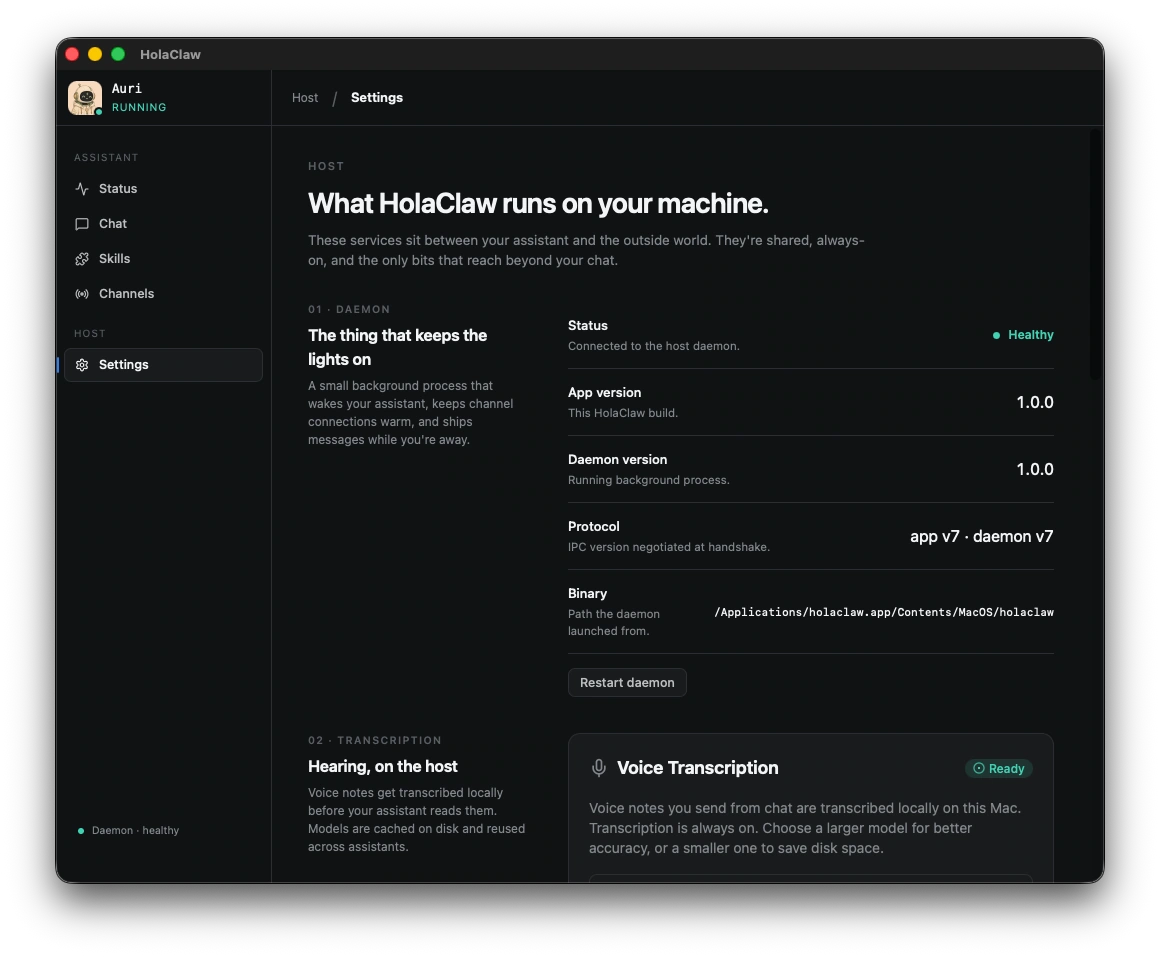
Step 2: Scroll down to the Danger Zone
Inside Settings, scroll all the way down until you see Danger Zone.
This area contains the SSH command for your VM.
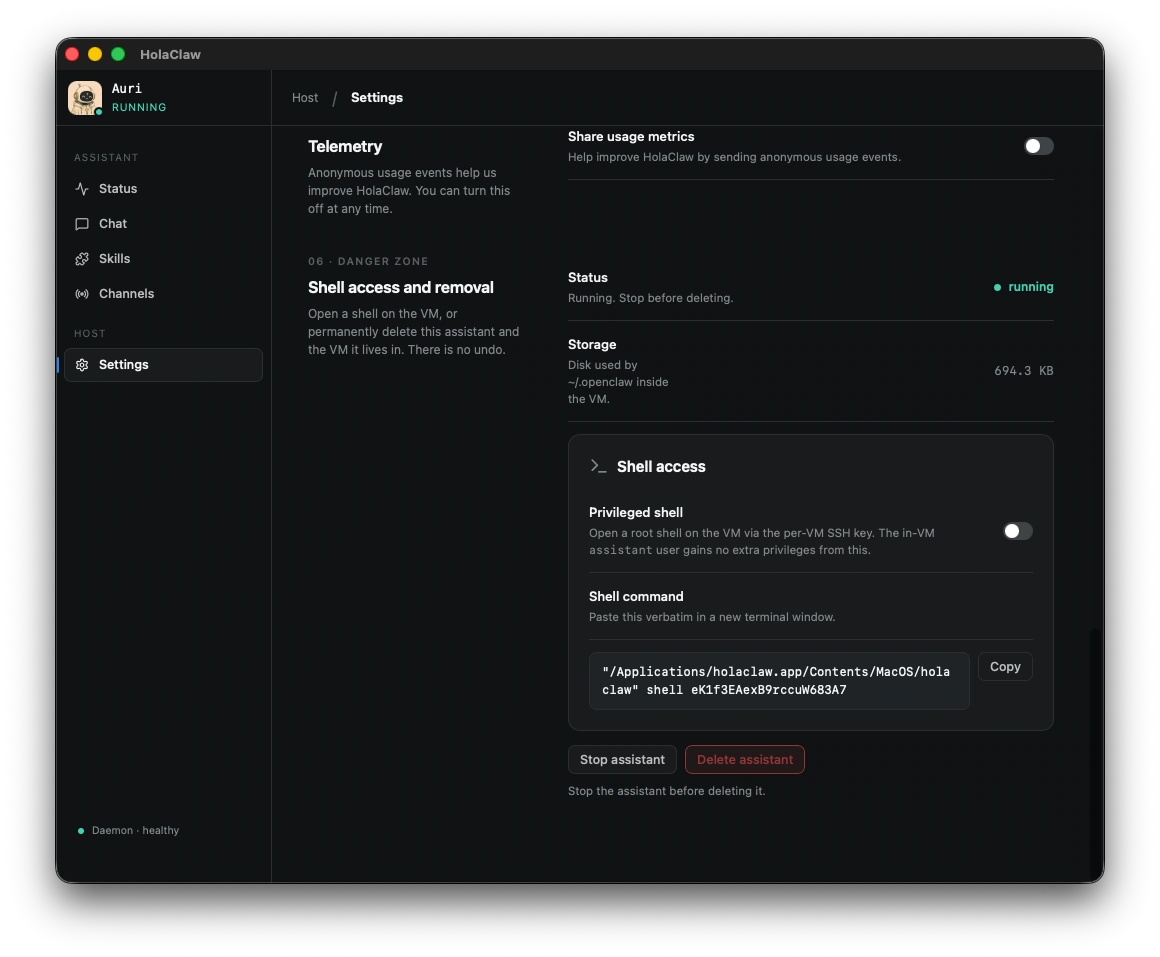
Step 3: Copy the SSH command
Click Copy next to the "Shell command" section. Enable "Privileged" if you need root access inside the virtual machine.
HolaClaw copies the full command to your clipboard, so you do not need to type it by hand.
Step 4: Paste it into your terminal
Open your favorite terminal app on your Mac, such as Terminal, paste the command, and press Enter.
That will open an SSH session into your HolaClaw virtual machine.
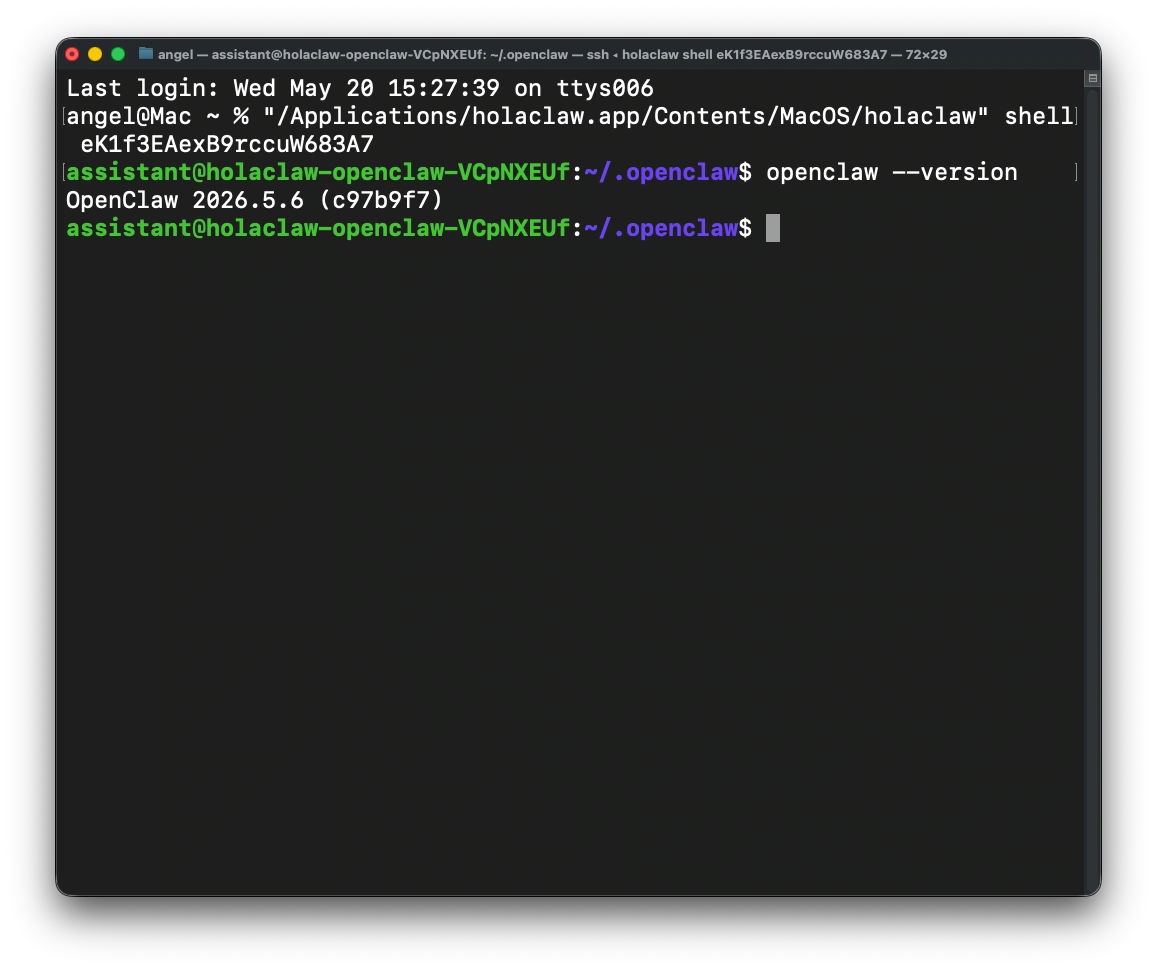
What happens next
Once connected, you are working directly inside the VM. From there, you can inspect the environment, run commands, and work with the system at a lower level than the regular app interface allows.
If the command does not work
- Re-open Settings -> Danger Zone and copy the command again.
- Make sure you pasted the full command.
- Try a different terminal app if your current one is modifying pasted text.
- If access still fails, ask in the HolaClaw Discord.
Related
If you only need normal day-to-day setup, go back to the regular docs sections first. The Advanced section is best saved for cases where you specifically need to access OpenClaw directly.